How to Resume Therapy
Congratulations! You just completed a software update. To confirm the update process was successful, tap Settings from the Navigation bar, Pump,and then Pump Info to check if the Pump Software version is correct.
Then follow these final steps to resume therapy:
A. Confirm Pump Settings
B. Load a Cartridge
C. Resume or Start a Sensor Session

Confirm Pump Settings
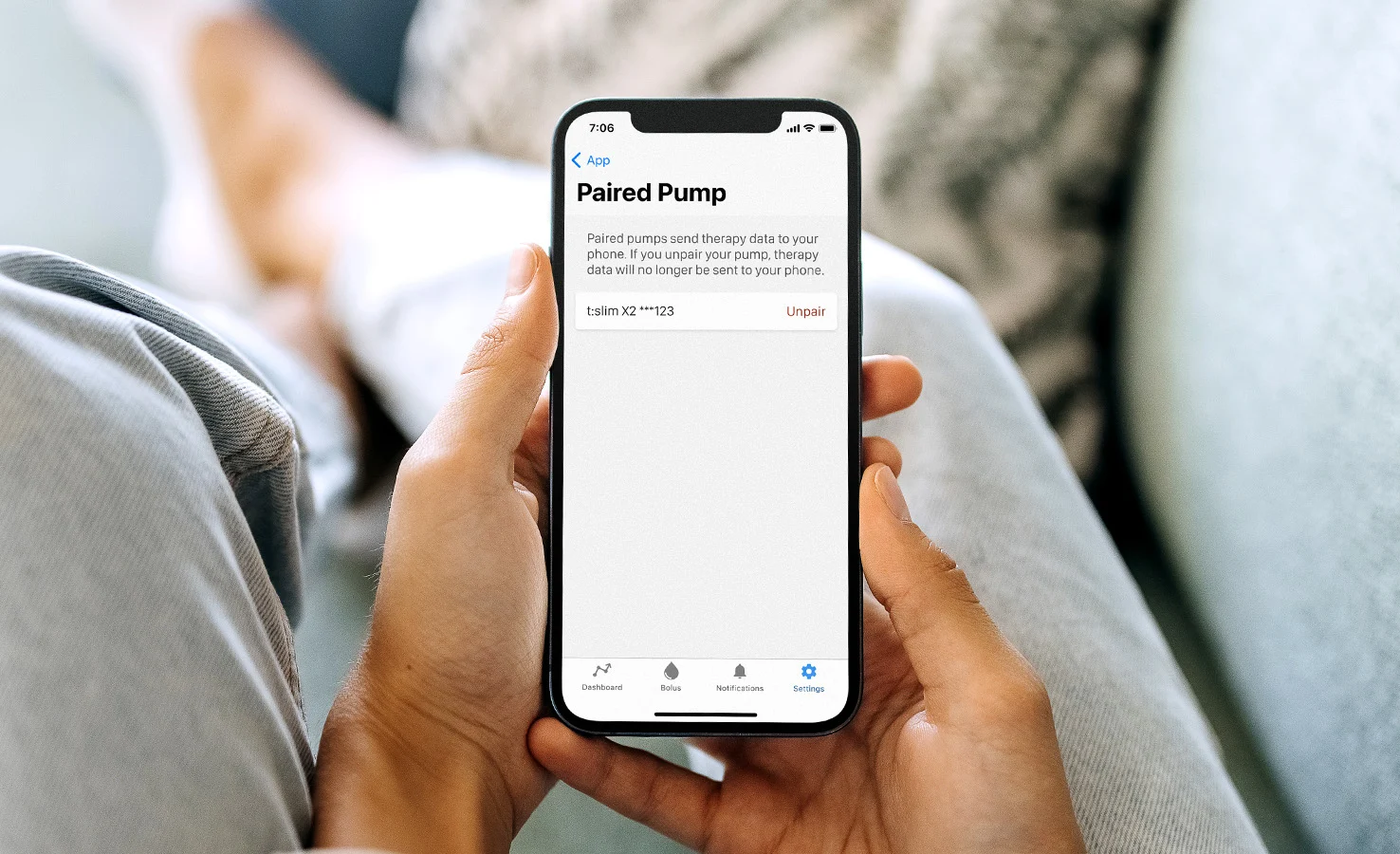
Incorrect settings can result in over delivery or under delivery of insulin. Confirm that the personal settings, date, and time are correct after the software update is complete. Closely monitor your blood glucose and insulin delivery to ensure your symptoms match your therapy data.
Reminder: The Insulin on Board (IOB) was reset to zero as part of the software update process.

Load a Cartridge
Now that the software update is complete, the cartridge will need to be changed before insulin delivery can be resumed.

Resume or Start a Sensor Session
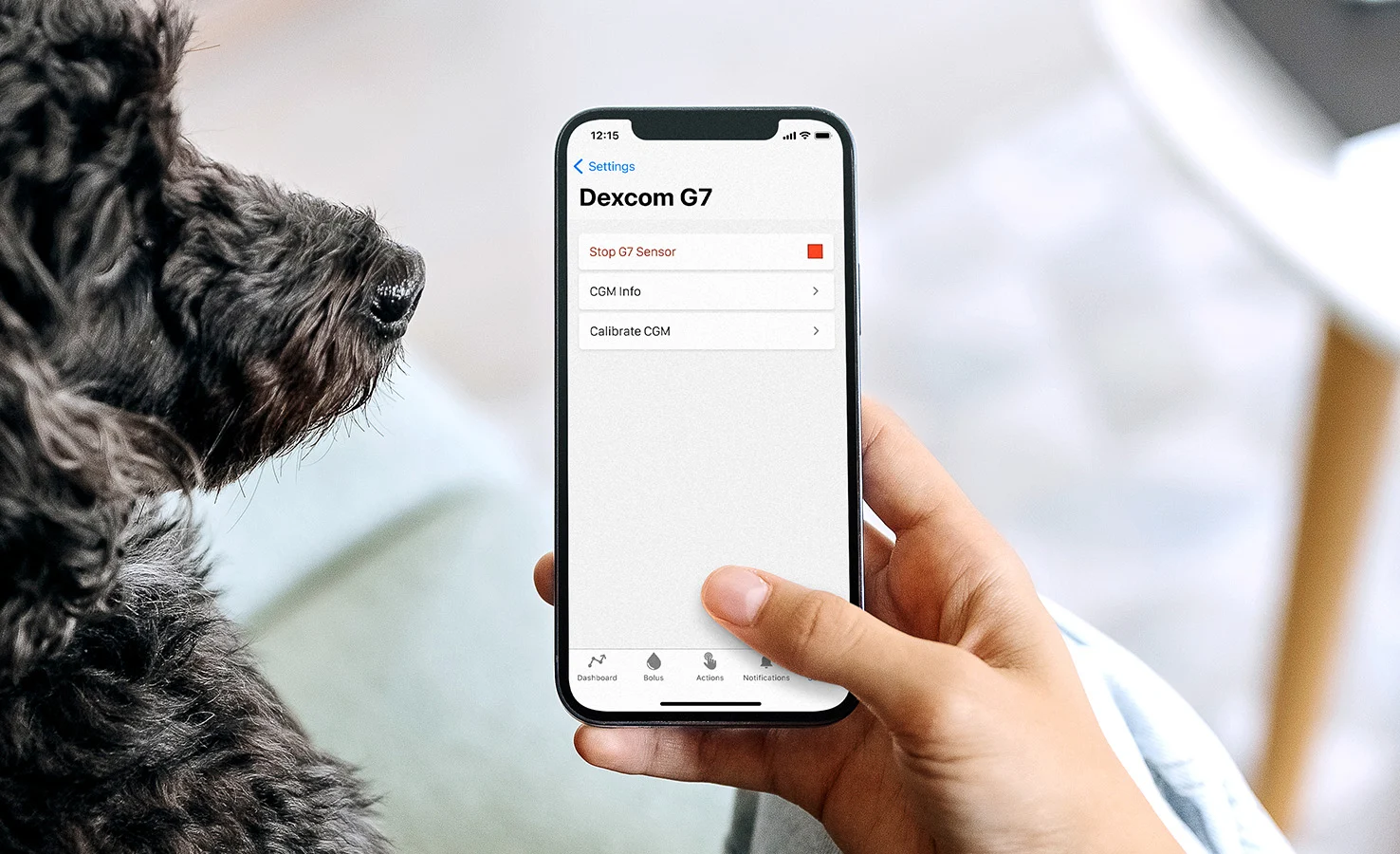
If you had an active sensor session before starting the software update, your session is still active, but you will not see a continuous glucose monitoring (CGM) graph until your session is manually resumed through the mobile app:
From the Navigation bar, tap Settings, CGM, and then Start Sensor
For a Dexcom G6 sensor, tap Skip when prompted to enter a Sensor Code
For a Dexcom G7 sensor, confirm the Pairing Code is accurate and tap Rejoin Session to continue. If the Pairing Code is not accurate, tap Pair a New Sensor, enter the correct Pairing Code, and tap Save to continue.
After a few minutes, your insulin pump will resume your current sensor session and your CGM readings will appear on the Dashboard
If you are starting a new session, download the detailed instructions below.
Download the Dexcom G6 or Dexcom G7 Start Sensor Session Quick References for a visual guide on next steps.