Before You Begin Checklist

Now that you have completed any preliminary steps via the Tandem Source platform, please review this checklist to minimize any disruptions in therapy:


A. Timing Your Update
B. Insulin on Board (IOB)
C. Continuous Glucose Monitoring (CGM)
D. Backup Supplies
E. Pump Settings

tandem-software-mobile-app-dashboard-738x450
tandem-icon-callout-a-green

Timing Your Update

  • Updating the software on your pump can take approximately 15 minutes

  • Choose a convenient time to stop all insulin delivery. You will need to disconnect your infusion set from your body during the update process.

  • / ! \ Important: Be sure to have supplies ready to load a cartridge. We recommend performing the software update when you are due for a cartridge change to ensure insulin is not left unused in the discarded cartridge.

  • We recommend performing the software update during normal business hours in case you experience any issues and need to switch to backup therapy or need to contact your heathcare provider

  • The battery on your insulin pump must have at least a 30% charge and the battery on your smartphone must have at least a 50% charge

  • Your smartphone needs to be connected to reliable Internet or cellular data

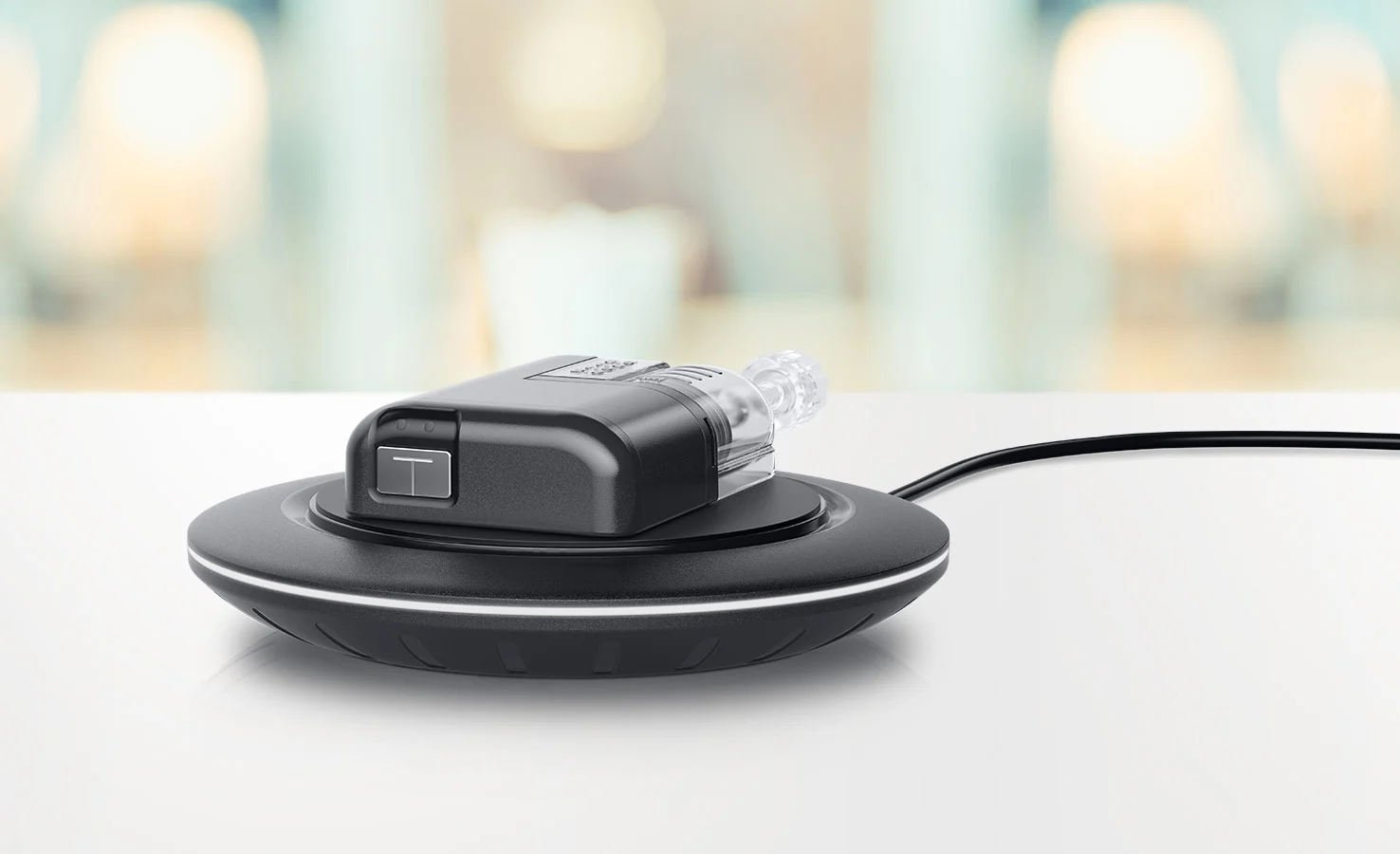
tandem-pump-accessories-mobi-charging-pad-738x450


tandem-icon-callout-b-green

Insulin on Board (IOB)

  • Make note or take a screenshot of the Insulin on Board displayed on your insulin pump. The IOB will be reset to zero after the software update.

Note: If you delivered a bolus before starting the update process, you may still have insulin working to lower the glucose in your body. This insulin will not be displayed on the pump nor used in the bolus calculator after the update process is complete.

tandem-icon-callout-c-green

Continuous Glucose Monitoring (CGM)

  • Make note of your current sensor reading

  • Do not stop your sensor session. You will be able to resume your current sensor session after the software update is complete.

tandem-icon-callout-d-green

Backup Supplies

  • Have a backup insulin delivery option available (e.g., syringe, long-acting insulin) in case there are any issues while updating your pump software

  • Have a blood glucose meter on hand to check your blood glucose

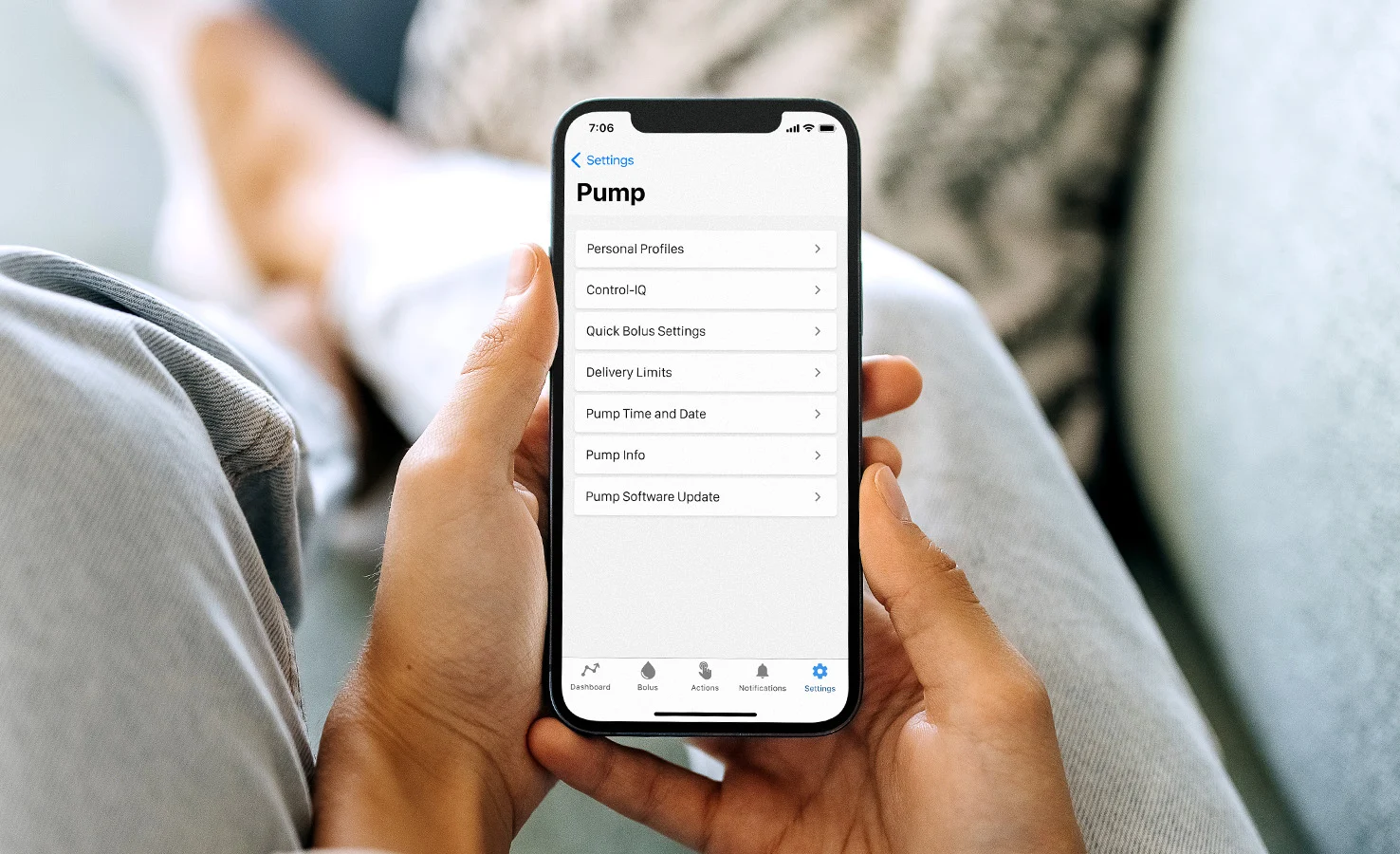
tandem-software-mobile-app-settings-pump-738x450
tandem-icon-callout-e-green

Pump Settings

Make note of your current pump settings in case there are any issues during the software update. Normally, your settings shouldn’t be erased or changed during the update process, but we recommend confirming your settings after the software update is complete.

tandem-icon-questions-green

Where can I find my pump settings? Settings are located under the Reports section of your Tandem Source account.

Note: The screens within this article are used to demonstrate how to use features within the application and are examples only. They should not be considered as suggestions for your individual needs.

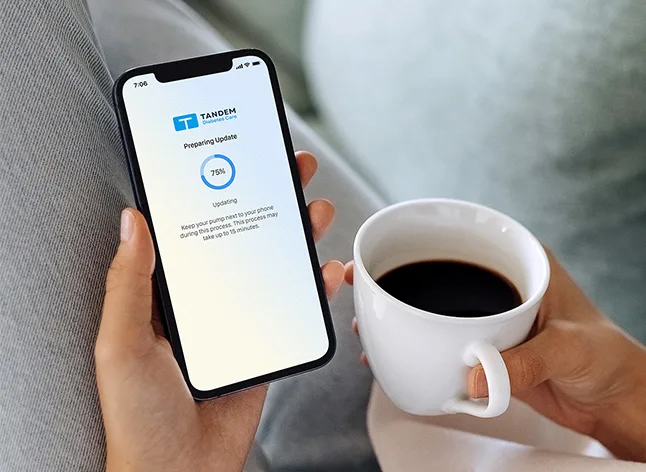
Mobile app Update Status screen

Step 2

How to Update

Update your pump software with new features via your Tandem Mobi mobile app.

View Article